# deepseek-cursor-proxy
Compatibility proxy connecting Cursor to DeepSeek thinking models (`deepseek-v4-pro` and `deepseek-v4-flash`).
## What It Does
- ✅ Caches DeepSeek `reasoning_content` from regular and streamed responses, then restores it on later tool-call turns when Cursor omits it. See [DeepSeek docs](https://api-docs.deepseek.com/guides/thinking_mode#tool-calls) for more details.
- ✅ Mirrors streamed `reasoning_content` into Cursor-visible `...` text so that thinking tokens are shown in Cursor's UI. For BYOK/proxy mode, Cursor renders this as normal text, not as a native collapsible thinking block.
- ✅ Starts an ngrok tunnel so Cursor can reach the local proxy.
- ✅ Provides other compatibility fixes to make DeepSeek models run well in Cursor.
## Why This Exists
This repository fixes the following Cursor + DeepSeek tool-call error with thinking mode enabled:
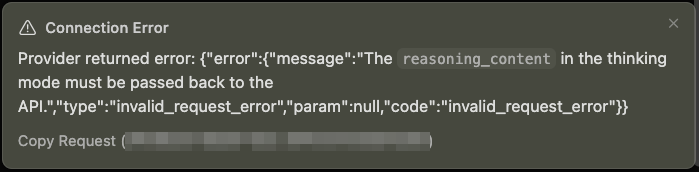
```txt
⚠️ Connection Error
Provider returned error:
{
"error": {
"message": "The reasoning_content in the thinking mode must be passed back to the API.",
"type": "invalid_request_error",
"param": null,
"code": "invalid_request_error"
}
}
```
## Usage
### Step 1: Set Up ngrok
Create an ngrok account, visit ngrok's Dashboard: https://dashboard.ngrok.com
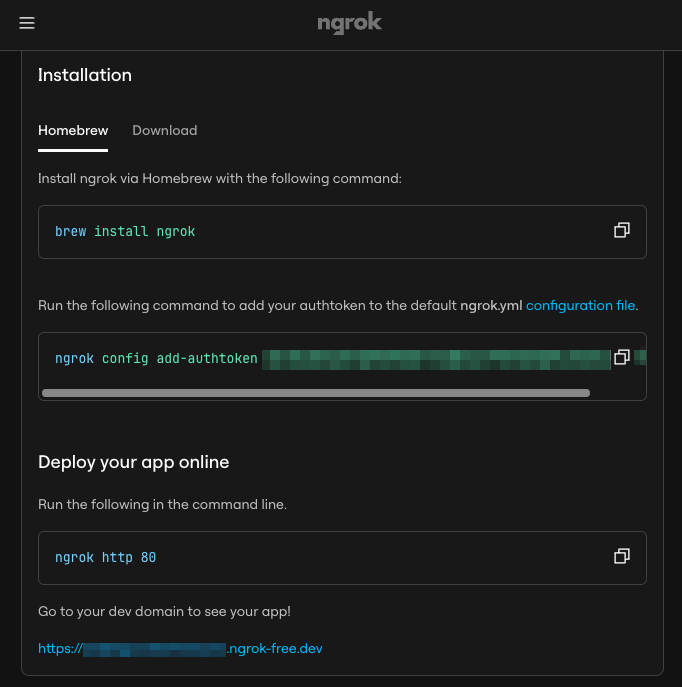
Then, install and authenticate ngrok once:
```bash
brew install ngrok
ngrok config add-authtoken
```
### Step 2: Add Cursor Custom Model
In Cursor, add the DeepSeek custom model and point it at this proxy:
- Model: `deepseek-v4-pro`
- API Key: your DeepSeek API key
- Base URL: your ngrok HTTPS URL with the `/v1` API version path
For example, if ngrok dashboard shows `https://example.ngrok-free.app`, use:
```text
https://example.ngrok-free.app/v1
```

Note: you can toggle the custom API on and off with:
- macOS: `Cmd+Shift+0`
- Windows/Linux: `Ctrl+Shift+0`
### Step 3: Start the Proxy Server
Install and run the proxy:
```bash
conda create -n dcp python=3.10 -y
conda activate dcp
pip install -e .
deepseek-cursor-proxy --verbose
```
The proxy creates `~/.deepseek-cursor-proxy/config.yaml` on first run.
This will also print the ngrok public URL. If it differs from the one in Cursor, update it in Cursor's Base URL field.
### Step 4: Chat with DeepSeek in Cursor
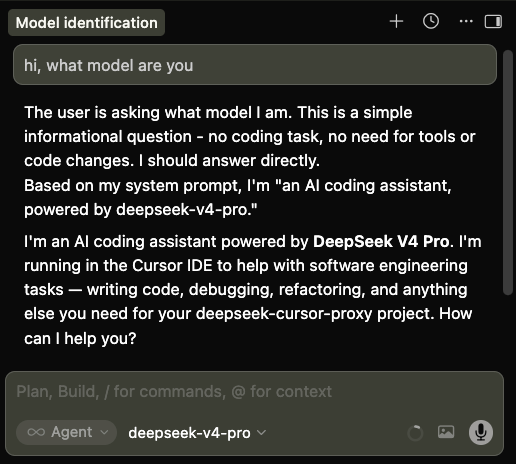
Select `deepseek-v4-pro` in Cursor and use chat or agent mode as usual.
## Debugging and Development
Run without ngrok for local curl testing:
```bash
PROXY_NGROK=false deepseek-cursor-proxy --port 9000 --verbose
```
Use another config file:
```bash
deepseek-cursor-proxy --config ./dev.config.yaml
```
Run tests:
```bash
PYTHONPATH=src python -m unittest discover -s tests
```